Initace
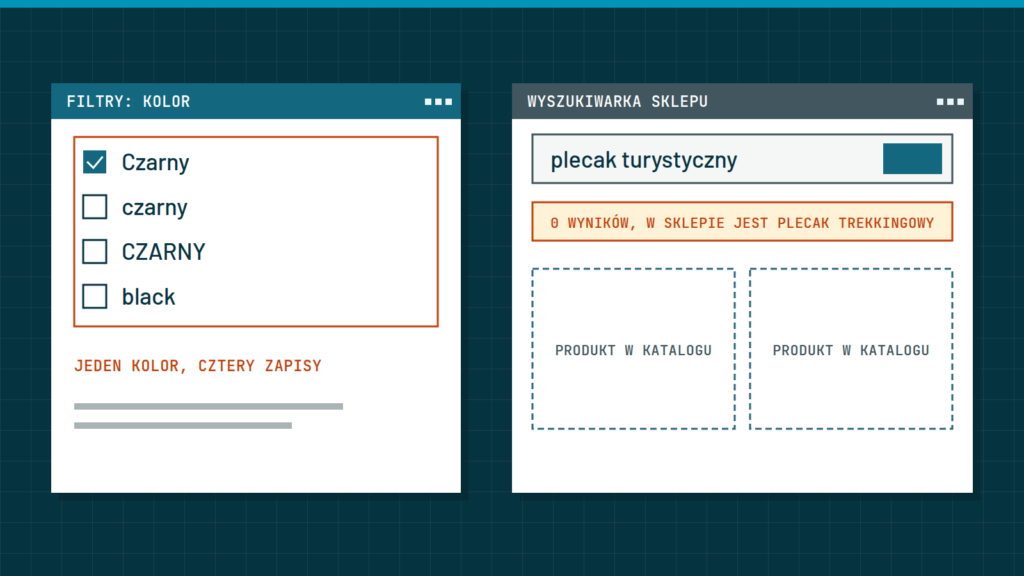
A customer cannot find a product because the store’s search understands only the exact name, the filters do not answer their questions, and product names do not match the words people use. You fix this in three steps: check what customers really search for, tidy up the product data, and match the filters to the way people choose. Below we describe each step.
How to tell that customers cannot find products
A customer who has not found an item rarely writes to the store about it. Usually they simply leave. So you have to detect the problem yourself. Start with a simple test: sit down with a phone and search for ten of your products the way a customer who does not know your catalogue would.
- Type a name with a typo, or without accented letters, for example “zolta kurtka” instead of “żółta kurtka” (yellow jacket) in a Polish store.
- Type an everyday name instead of the catalogue one, for example “school backpack” instead of “urban backpack model 12”.
- Type a plural, a different form of the name, or just one word.
- Type a manufacturer’s code or a brand name, if you sell it.
- Type something the store does not have and see what the page shows.
If in any of these cases the store shows an empty page with no hint, you have found your first place to improve.
Causes: why search does not work as you expect
The built-in search in WooCommerce and PrestaShop is basic. It looks for matching words in the name and description, often without understanding word forms, typos and substitutes. On top of that come data problems.
- Names made for the warehouse, not the customer. A name like “PL-4412 black M” means nothing to someone searching for a “hooded sweatshirt”.
- No synonyms. The same item goes by several names: “jacket”, “parka”, “winter coat”. The search does not know that until you tell it.
- Empty or copied descriptions. If the words customers use appear nowhere in the product text, there is nothing to match.
- Products in the wrong categories. An item sitting in a “Miscellaneous” category will not be found by browsing.
- Search hidden on a phone. A magnifying-glass icon tucked into a menu gets overlooked, and a phone is exactly what most people use to browse stores.
What to do about the search
It is worth making search fixes starting with the cheapest. A few of them are often enough.
- Put the search field in view right at the top of the page, on a phone too. It should be wide and labelled, for example “What are you looking for?”.
- Check which fields the search looks in. Turn on the name, the short description, the product code and the brand, if the settings allow it.
- Add to product names the words a customer would use. A name like “Leather urban backpack, brown” works better than a model number alone.
- Prepare a list of synonyms and common mistakes, for example “trainers” and “sports shoes”. If the built-in search does not handle this, consider an advanced search. That is a decision to discuss with your contractor, because it depends on the size of the catalogue.
- When there are no results, show a helpful page: suggest similar categories, display bestsellers and give a number or a form to ask about the product. An empty page ends the conversation; a helpful one keeps it going.
- From time to time, go through the terms customers searched for, if the store records them. It is a ready list of what to add to names and descriptions.
Filters: how to design them
Filters help narrow the choice, but only when they answer customers’ questions. A common mistake is filters copied from technical data: “EAN code”, “weight in grams”, “manufacturer’s symbol”. The customer wants to choose a size, a colour, a price or a purpose.
Match the filters to how people choose this kind of product. In a clothing store these will be size, colour and cut. In a tool store: type of power, purpose and brand. Ask a few customers, or look at what they ask about by phone and in messages, and you will get a ready list.
- Show only the filters that apply to the category being viewed. Colour in a books category is pointless.
- Set the order so the most important ones are at the top.
- Do not show options that leave zero products. A greyed-out option marked “none” can stay, but it is better hidden.
- Keep value names consistent. If you have “black” once and “Black” and “blackish” elsewhere, the filter will show three separate entries.
- Show the active filters and a simple way to clear them.
Consistent values are really work on data, not on appearance. If you have many products, tidying up attributes is the most important investment. How this fits with search ranking is explained in the guide SEO for e-commerce: what really works in 2026.
Filters and search on a phone
On a small screen, filters take up the whole page, so they must be shown differently than on a computer. A “Filter” button that opens a separate panel works well: the customer chooses options and confirms them with one button showing the number of matching products. The panel should close with one tap and remember the choice after returning from a product page. Many stores lose this choice, and the customer has to start over.
Sorting is also a filter in a wider sense. Set a sensible default order, for example bestsellers or newest, and show an option to sort by price. Check everything on a real phone, not only in a preview on a computer.
How to check the effects of changes
After the fixes, check whether they really helped. You do not need complicated tools, just a few simple observations.
- Repeat the same ten-search test every month and record the results in a table.
- Pay attention to customers’ questions about products you have in the store. Every such question means the customer could not find it.
- Compare the number of orders with the number of visits to the search results page, if the store records it.
- Add to names and descriptions the new words customers search for, rather than removing them once search starts to work.
Search and filters need constant care, because the catalogue changes. Every few months, go through the attributes and remove those that appeared by accident.
A list of steps to take this week
- Run the ten-search test described at the start and note what did not work.
- Fix the names of your ten most popular products.
- Check which fields the search looks in and add the missing ones.
- Replace the empty no-results page with a page of suggestions.
- Review the filters in your three largest categories and remove those nobody needs.
- Unify the names of attribute values.
In short: test the search as a new customer would, fix product names and data, match the filters to customers’ questions, and turn empty results into suggestions.
If your catalogue is large and the built-in search is not enough, we will take care of it in a WooCommerce store or in a PrestaShop store. You can also book a call.