Initace
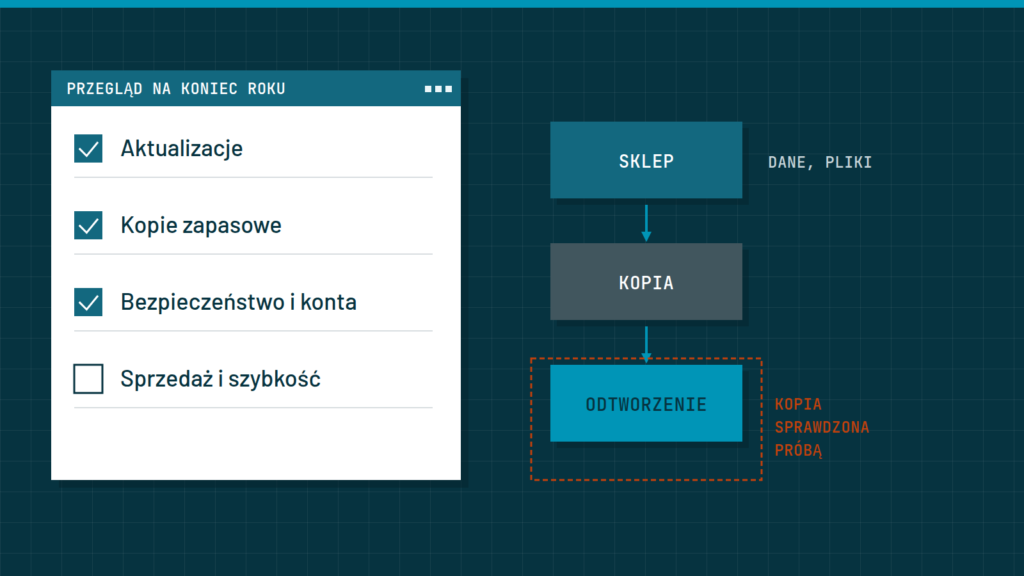
A year-end review of your store comes down to four checks: the software is up to date, the backups work and can really restore the store, accounts and passwords are under control, and small faults are not quietly costing you sales. It takes a few hours spread over a couple of days and saves you stress in the busy season. Below are the steps in the order we suggest doing them.
Why do the review now
The period between the holidays and early January is usually quieter, so it is easier to do work that may briefly disturb the store. It is also a natural moment to tidy up: the year is closing, so you can check what happened on its own over twelve months and what was forgotten.
A store nobody checks ages quietly. Plugins and themes receive security fixes, the server changes its software version, the certificate that secures the connection expires, and backups stop running without any warning. All of this comes to light only when something breaks. A review catches such things earlier. If you would rather not do it yourself, you can hand over the care of the store, as we describe in the section “Do it yourself or hand it over”.
Updates
Updates are needed because they contain fixes for bugs and security holes. At the same time they carry some risk, because a new version of one plugin may stop working with another. That is why you should not click “update all” on a live store.
- Make a fresh backup before any change.
- If you can, make a working copy of the store, meaning a separate version for trials, and test the updates there.
- Update in order: the core (WordPress or PrestaShop), then the theme, and the plugins or modules last. After each step, check the home page and the checkout.
- Remove plugins and modules you do not use. Deactivated ones still take up space and may have vulnerabilities.
- Check the programming language version on the server that runs the store, and whether your hosting still supports it.
- When you finish, place a test order: add a product, choose delivery, pay, and check the e-mails.
In PrestaShop, updates more often need a developer’s manual work than in WooCommerce, so leave more time for them. You will find a comparison of both platforms from this angle in the guide PrestaShop or WooCommerce: which to choose.
Backups
A backup you have never tried to restore is only a hope. Check not just that it is being made, but that the store can be rebuilt from it.
- What to copy. The database (orders, customers, products) and the files (images, theme, plugins). The database alone or the files alone are not enough.
- How often. For a store that gets orders every day, the backup should be made every day. The less often, the more orders you lose in a failure.
- Where to keep it. Outside the server that runs the store. A backup on the same server disappears together with it.
- How long to keep it. Several recent versions, not only the newest, because a problem sometimes shows up only after a few days.
- Who has access. A backup contains customer data, so keep it in a safe place and never send it to anyone by ordinary e-mail.
Run a restore test: load the latest backup into a separate test location and check that the store works, the orders are there and the images display. Write down how long it took, because that is the time you would be out of sales in a failure.
Security and accounts
Break-ins to stores often start with a weak password, an old plugin or an account the owner forgot about. Checking them takes little time.
- Go through the list of administrator and staff accounts. Delete the accounts of people who no longer work with you, and of former contractors.
- Change the passwords to the store panel, hosting, e-mail and payment provider. Use long, unique passwords, ideally from a password manager.
- Turn on an additional login confirmation wherever possible.
- Check that the store runs over an encrypted connection on every page and that the certificate does not expire in the coming weeks.
- Limit permissions: a person who handles orders does not need access to plugin settings.
- Look at recent failed login attempts, if the store records them. Many attempts from one place are a sign of an attack.
- Make sure the forms do not accept automated submissions without protection.
Discuss matters related to customers’ personal data and your obligations towards them with a lawyer.
Sales, speed and small faults
A technical review is not everything. Also check what the customer sees and what brings in the money.
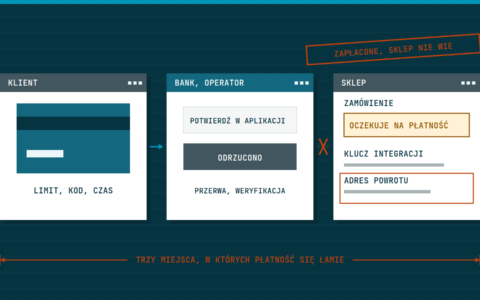
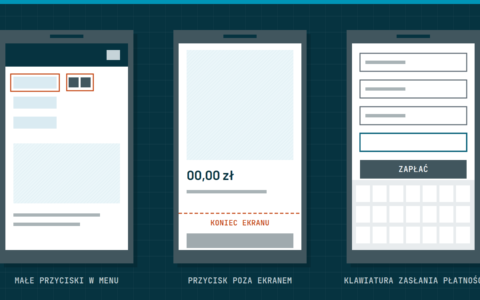
- Go through a purchase on a phone and on a computer. See whether payments, delivery and e-mails work, as we describe in the article Failed payments in your store.
- Check the speed of your three most popular pages. You will find tips in the guide Why your WooCommerce store takes 4 seconds to load.
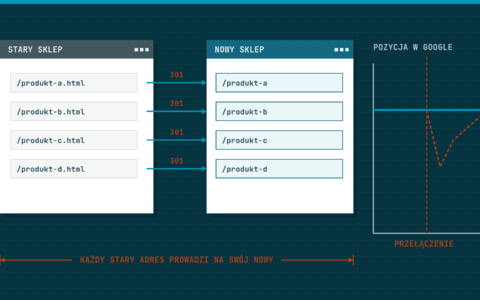
- Find broken links and “not found” pages, then fix or redirect them.
- Review stock levels and discontinued products.
- Update company details, opening hours, delivery rules and the year in the footer.
- Switch off discount codes and notices that have expired.
Do it yourself or hand it over
If you have little technical experience, it is better to give some of the work to a specialist, especially updates on a live store and the backup restore test. A mistake in those places costs the most. Aftercare covers these tasks regularly, not once a year: for a WooCommerce store it starts at €145 net/month The details and scope are on the page Aftercare.
What to write down after the review
A review loses half its value if nothing is left behind. Record a few pieces of information in one document that will save you hours next year.
- the date of the review and who carried it out,
- the versions of the store, the theme and the most important plugins or modules,
- where the backups are kept and how to restore them, together with the time the test took,
- a list of people with access to the panel, the hosting and the payment provider,
- the expiry dates of the domain, the certificate and the licences of paid add-ons,
- things you postponed, with the reason.
With such a note, a new employee or a new contractor will quickly see how the store is set up. While you are at it, set a calendar: a short review every quarter and a full one once a year. For a store that takes orders every day, more frequent checks of backups and payments are more sensible.
Year-end checklist
- Make a fresh backup and check that it can be restored.
- Update the core, the theme and the plugins one after another, testing after each change.
- Remove unused plugins, modules and accounts.
- Change passwords and turn on an additional login confirmation.
- Check the certificate’s validity and the server version.
- Place a test order on a phone.
- Write down the date of the review and plan the next one.
In short: a backup with a restore test, updates in order, tidy accounts and passwords, and a test order. Write down the date, repeat a short review every quarter and a full one next year.
Prefer someone to do this regularly? We will take over the care of your store or book a call.