Initace
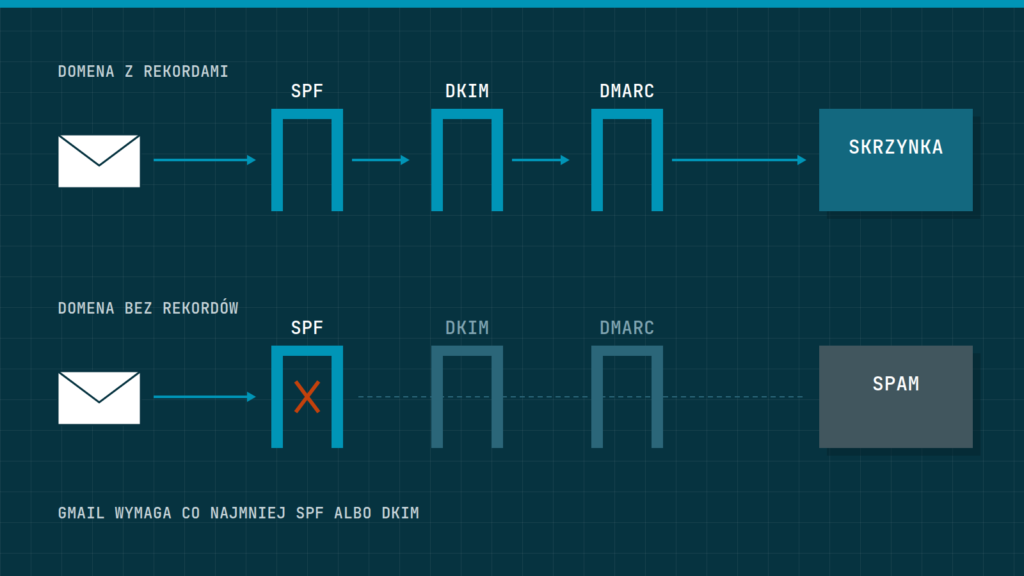
Store emails usually land in spam or fail to arrive because the recipient’s mailbox cannot confirm that they really came from your store: the domain has no correct SPF, DKIM and DMARC records, and the store sends mail through a server that does not match that domain. The fix usually takes an afternoon. You need to check three records in the domain’s DNS, switch sending to a mailbox or email service that signs messages, and send a test message to Gmail so you can read the result.
SPF, DKIM and DMARC in plain English
All three are text entries (TXT records) in the domain’s DNS settings, that is, wherever you manage your store’s address: at the domain registrar or in the hosting control panel. The recipient’s mailbox, Gmail for example, reads them for every message.
- SPF is a list of the servers allowed to send mail on behalf of the domain. It looks like this, for example:
v=spf1 include:_spf.mail-provider.com ~all. A domain may have only one such record, and checking it must not take more than 10 additional DNS lookups, or SPF stops working. - DKIM is a digital signature added to every message. The sending server signs the email with a private key, and the public key sits in DNS at
selector._domainkey.yourstore.com. Google requires a key of at least 1024 bits and recommends 2048. - DMARC tells the recipient’s mailbox what to do with a message that claims to come from your domain but has not passed SPF or DKIM in alignment with the “From” address. The record sits at
_dmarc.yourstore.comand the simplest one looks like this:v=DMARC1; p=none; rua=mailto:dmarc@yourstore.com.
Alignment with the “From” address is the key point here. DMARC passes only when the domain the customer sees in the sender field matches the domain checked by SPF or signed by DKIM. A store that sends as sklep@yourstore.com but through a server that signs with the hosting company’s domain has SPF and DKIM that are technically correct, and DMARC still fails.
Transactional and marketing messages are two different things
A store sends two kinds of mail, and it is worth keeping them apart from the start. Transactional messages result from something the customer did: an order confirmation, a status change, a tracking number, a password reset, an account confirmation. Marketing messages are the newsletter, promotions and anything meant to prompt the next purchase. In its answers for senders, Google gives password resets, reservation confirmations and form submission confirmations as examples of transactional messages. It also adds that the line can depend on the industry and that, in the end, recipients decide what counts as promotional.
An abandoned cart reminder sits on that line, and the Google and Yahoo documents do not mention it. It is safer to treat it as a marketing message: with an unsubscribe link and, if possible, from a different address than the order confirmations. We cover the content of such a reminder in Abandoned carts: how to win customers back.
What Gmail, Yahoo and Outlook require
Since 1 February 2024, Google has required every sender writing to personal Gmail accounts to have at least SPF or DKIM, a valid reverse DNS (PTR) record for the server’s IP address, an encrypted TLS connection and a spam complaint rate in Postmaster Tools below 0.3%. You also must not send with a sender address in the gmail.com domain. Anyone sending close to 5,000 or more messages a day to Gmail accounts must have SPF and DKIM, a DMARC record (p=none is enough), “From” domain alignment with SPF or DKIM, and, in marketing messages, one-click unsubscribe plus a visible unsubscribe link in the body. All mail from the same primary domain counts towards the limit, and anyone who exceeds it even once is treated as a bulk sender permanently.
Google recommends keeping the spam complaint rate below 0.1% and never reaching 0.3%. According to Google’s answers to senders’ questions, a bulk sender above 0.3% loses the ability to raise an issue with support and gets it back after 7 consecutive days below that threshold. From November 2025 Gmail is tightening enforcement, and messages that do not meet the requirements may be rejected temporarily (4.7.x codes) or permanently (5.7.x codes). Google does not say exactly how a rate above 0.3% translates into landing in spam. It only mentions a “greater negative impact”.
Yahoo requires all senders to have SPF or DKIM, valid forward and reverse DNS and a spam rate below 0.3%. From bulk senders it requires SPF and DKIM, a passing DMARC of at least p=none, one-click unsubscribe for marketing messages and honouring unsubscribes within 2 days. Yahoo does not state the number of messages that makes a sender a bulk sender. Since 5 May 2025, Microsoft has required domains sending more than 5,000 messages a day to outlook.com, hotmail.com and live.com addresses to pass SPF and DKIM and to have DMARC of at least p=none. Messages that do not meet the requirements go to the Junk Email folder, and Microsoft has announced that it will reject them, without giving a date. Microsoft does not state a spam complaint rate.
Why mail sent straight from the store’s server gets rejected
By default PrestaShop sends mail with PHP’s mail() function, and WooCommerce with WordPress’s wp_mail() function, which does the same thing unless an extra plugin is installed. The message then leaves from the server the store runs on. That server is often not listed in the domain’s SPF, does not sign mail with the domain’s DKIM key, and its reverse DNS record points to the hosting company’s name. On shared hosting the same IP address also sends other customers’ mail, so its reputation is built not only by your messages. The WooCommerce documentation explicitly recommends an account with an SMTP provider, because it is more reliable than the server’s mail function.
Use a separate sender, that is, sending through the SMTP of a mailbox in your own domain or through a transactional email service, whenever the test described below shows missing DKIM or DMARC, whenever your hosting does not let you sign mail with the store’s domain, or whenever you send a newsletter. Send the newsletter through a different service or from a separate subdomain than the order confirmations, so that complaints about promotions do not hurt the deliverability of password resets.
Checklist
- Check the domain’s records. In a terminal, type
dig TXT yourstore.com +short(SPF),dig TXT _dmarc.yourstore.com +short(DMARC) anddig TXT selector._domainkey.yourstore.com +short(DKIM, your email provider will give you the selector). Without a terminal, use the Check MX tool in Google Admin Toolbox. - Make sure there is only one SPF record and that it lists every service that sends on behalf of the domain: the company mailbox, the store’s SMTP service, the newsletter system, the invoicing software.
- Turn on DKIM with your email provider and add the record it gives you to DNS.
- At least 48 hours after setting up SPF and DKIM (Google says that is how long they can take to start working), add DMARC with
p=noneand anruaaddress where the reports will arrive. - Set the store’s “From” address to a mailbox in your own domain, for example
zamowienia@yourstore.com. Never to an address at gmail.com, wp.pl or onet.pl (popular free Polish mail services). - Switch the store’s sending to the SMTP of that mailbox or email service.
- Send a test message to Gmail and read the headers.
PrestaShop step by step
You set the address the customer sees as the sender in Shop Parameters > Contact, on the Stores tab, in the contact details section (the shop email field). Enter an address in the store’s domain there. You set up sending in Advanced Parameters > E-mail. The PrestaShop 8 and 9 documentation describes three sending options on that page: PHP’s mail() function, your own SMTP parameters, and never sending emails, which is only meant for testing.
- Choose your own SMTP parameters. Fields appear for the mail domain name, SMTP server, username, password, encryption and port. Your mailbox provider will give you the values, often SSL with port 465 or TLS with port 587.
- If the provider does not sign mail for you, turn on DKIM signing on the same page and fill in the DKIM domain, selector and private key. It is usually simpler, though, to leave the signing to the SMTP service.
- Save, enter your own address in the test section and send a test message.
- Keep the log of sent emails turned on. At the top of that page you can see the recipient, template, subject and time of every message sent.
Newsletter and cart reminder modules in PrestaShop often have their own sending settings. Check them separately, because they can keep sending through mail() even when the store already uses SMTP.
WooCommerce step by step
WooCommerce has no built-in SMTP setting, so you need an SMTP plugin or your email service provider’s plugin. The WooCommerce documentation does not name a specific one. Choose one and do not install a second, because two plugins that take over wp_mail() get in each other’s way.
- In WooCommerce > Settings > Emails, under the email sender options, enter the “From” name and a “From” address in the store’s domain. If customers should reply to a different mailbox, turn on a separate reply-to address.
- On the same page, check that the messages you care about are enabled: processing order, completed order, customer note, reset password, new account.
- In the SMTP plugin, enter the server, port, encryption, username and password from your provider, and set the sender address to the same one as in WooCommerce.
- Place a test order and request a password reset on a test account.
- Check WooCommerce > Status > Logs, source
transactional-emails. A “sent” entry means WooCommerce handed the message to the mail system, and a “failed” entry usually includes the reason. Sending attempts also show up in the order’s private notes. “Sent” does not mean the email arrived, however: the SMTP provider’s dashboard and the headers in the customer’s mailbox tell you that.
How to test sending with Gmail
Create an ordinary Gmail account for testing and send an order confirmation and a password reset to it. Open the message, click More next to the reply button and choose Show original. In the new window, find the Authentication-Results line. Gmail’s server records the result of every check there, for example spf=pass, dkim=pass header.i=@yourstore.com and dmarc=pass.
Look not only at the word pass but also at the domain next to it. If DKIM passes for the hosting company’s domain rather than for yourstore.com, DMARC will not see alignment. A dmarc=fail result alongside a valid SPF most often means exactly that SPF checked a different domain from the one in the “From” field. You can also paste the copied headers into the Messageheader tool in Google Admin Toolbox, which lays them out in a readable form.
The most common mistakes
- Two SPF records instead of one, because a new provider added its own next to the old one. They need to be merged into one.
- Too many
includeentries in SPF and going over the limit of 10 lookups, usually after adding yet another service. - Going straight to
p=rejectin DMARC. Google recommends a week onp=nonewhile reading the reports, thenp=quarantinefor a small share of mail (thepctparameter, a small business can start at 10) and raising it gradually. A policy that is too strict will cut off a forgotten service, such as the invoicing software. - A “From” address at a free mail service, or a different one in the store than in the SMTP plugin.
- An unsubscribe link added to order confirmations. Google requires one-click unsubscribe only for marketing messages, and a customer should not be able to unsubscribe from news about their own parcel.
- The newsletter sent through the same server and from the same address as password resets.
When emails still do not arrive after the fixes
If the headers show pass three times and mail still goes to spam, the cause is more likely reputation or content. Set up Google Postmaster Tools for the store’s domain: it shows the spam complaint rate calculated daily, rejection codes and the state of compliance with the requirements. If a customer’s mail bounces with a code starting with 5.7, the text of the server’s reply usually points to the requirement that was not met, for example SPF or PTR. Go through the DMARC reports as well: they will show a server sending on behalf of your domain that you had forgotten about. It is worth taking the same steps before a busy sales period, which we cover in Will your store survive Black Friday, and during the annual year-end store review.
Questions and answers
My store sends a few dozen emails a day. Does this apply to me?
Yes. Google and Yahoo require SPF or DKIM from every sender, whatever the number of messages. The threshold of 5,000 a day only applies to the additional requirements, such as mandatory DMARC and one-click unsubscribe.
Does DMARC with p=none achieve anything?
It meets the Google, Yahoo and Microsoft requirement for bulk senders and turns on reports. The reports show who is sending mail on behalf of your domain. Protection against spoofing only comes with p=quarantine or p=reject.
Does a cart reminder need an unsubscribe link?
The Google and Yahoo documents do not settle whether it is a transactional or a marketing message. Google points out that recipients decide what counts as promotional. An unsubscribe link in the reminder is therefore wiser than a spam complaint.
In short: set up one SPF record, turn on DKIM, add DMARC with p=none, send from the store through SMTP from an address in your own domain, and check the result in the Authentication-Results header in Gmail. Keep the newsletter and reminders separate from order confirmations.
We check a store’s email as part of a store audit, and with store aftercare we keep an eye on it continuously.